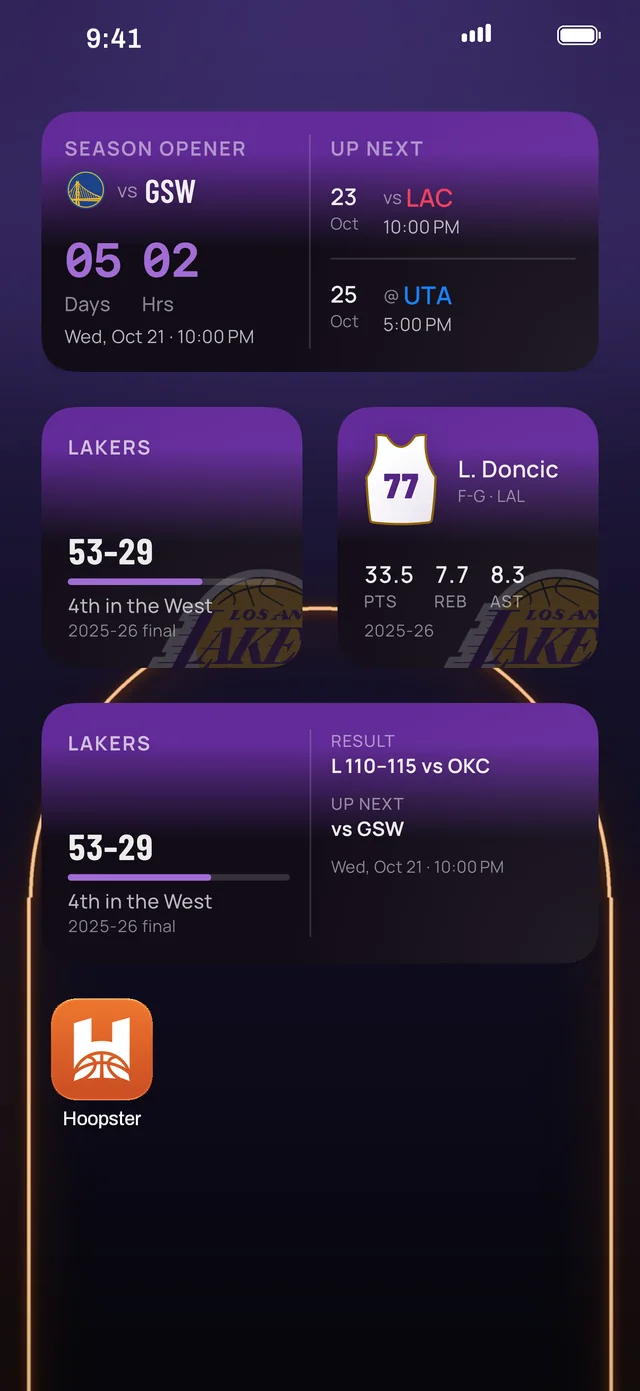
Hoopster's widgets
| Widget | What it shows | Where |
|---|---|---|
| Next Game | A countdown to your team's next tip-off | Home Screen, Lock Screen |
| Tonight | The whole night's games as a live scoreboard | Home Screen |
| My Team | Your team's record, standing and next game | Home Screen, Lock Screen |
| My Player | Your player's number and season averages | Home Screen, Lock Screen |
| Latest News | Basketball headlines as they land | Home Screen, Lock Screen |
| Team Colors | Your team's name and colors, even offline | Home Screen, Lock Screen |
Every widget is drawn in the colors of the team you follow. The small Next Game countdown is free, forever. Hoopster MVP ($2.99 a month or $19.99 a year in the US) adds the others, including every Lock Screen widget.
Add one to the Home Screen
- Install Hoopster and pick your team, so the widgets know who to show.
- On the Home Screen, touch and hold an empty area until the apps jiggle.
- Tap Edit in the top corner, then Add Widget.
- Search for Hoopster and tap it.
- Swipe to the widget and size you want, then tap Add Widget.
- Drag it where you like and tap Done.
Add one to the Lock Screen
- Unlock with Face ID or Touch ID but stay on the Lock Screen, then touch and hold it.
- Tap Customize, then choose the Lock Screen.
- Tap the widget area under the clock, then find Hoopster in the list.
- Tap the widget you want, then tap Done.
The live score of a game in progress isn't a widget: that's a Live Activity, which appears on its own just before your team tips off. See how to get NBA scores on your Lock Screen.
Keep them spoiler-free
If you turn on Hide scores in Hoopster's Settings, the widgets keep final scores hidden too, until you open the game. See how to follow the NBA without spoilers.