What you get
- Tip-off reminder: 15 minutes before your team's game starts
- Final score: as soon as your team's game ends
- Predict results, if you call games against friends in Predict
Alerts follow the team you picked in Hoopster, and they're free. Every time is in your iPhone's own time zone.
Turn alerts on
- Install Hoopster and pick your team.
- When Hoopster asks to send notifications, tap Allow.
- To check or change it later, open Settings in Hoopster (the gear on Home) and look at Push Notifications. It reads "Tip-off reminders and final scores for your team, plus Predict results." when alerts are on.
If it says Blocked in iOS Settings, tap Open Settings and turn on Allow Notifications for Hoopster.
A reminder for any other game
For a game that isn't your team's, open the Schedule tab: the featured game at the top has a Remind me button. Tap it and Hoopster reminds you 15 minutes before tip-off; the button then reads Reminder set. On your own team's games it reads Team alert on, because your team alerts already cover it.
The live score, without alerts
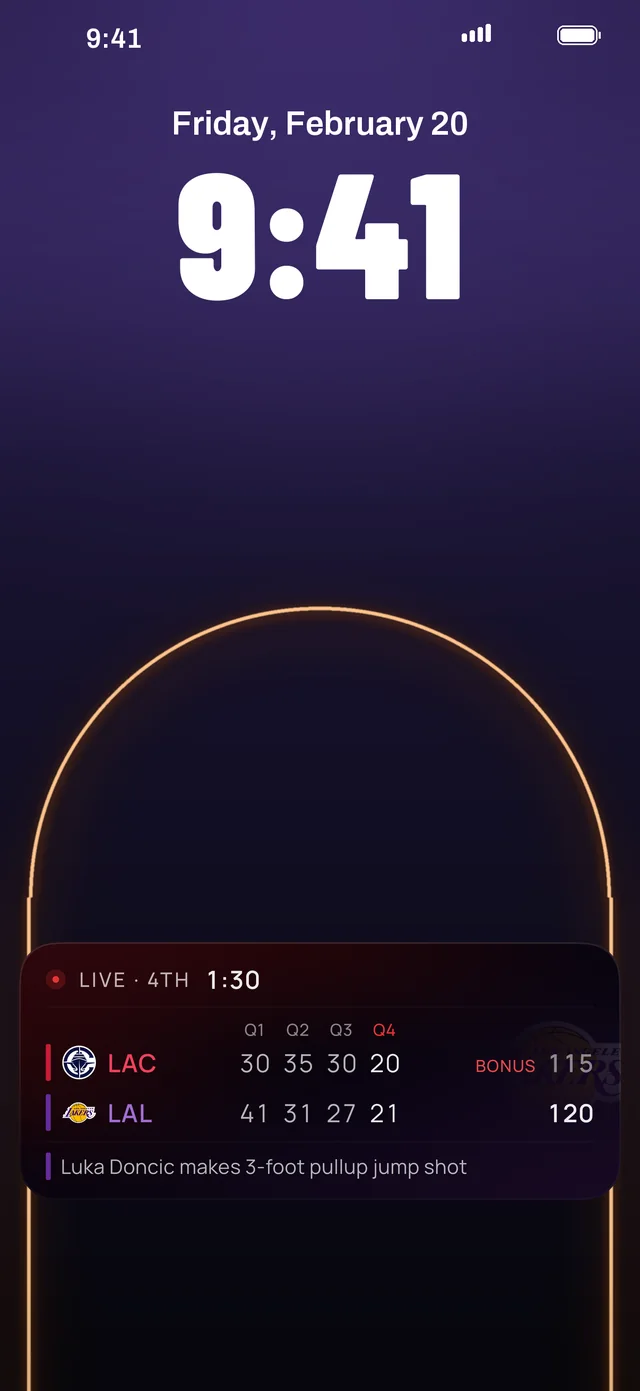
While the game is on, you don't need a notification for every basket. Hoopster's Live Activity keeps the score, the clock and every quarter on your Lock Screen and in the Dynamic Island, and it starts on its own just before your team tips off. See how to get NBA scores on your Lock Screen.
Alerts without spoilers
Watching later? Turn on Hide scores in Hoopster's Settings and the final-score alert arrives without the score, so it can't give the game away. See how to follow the NBA without spoilers.


